
Create and activate your account
You can use BIM VPN for 60 minutes per day without an account. An account lets you buy a plan and keeps your subscription across devices.
Create an account
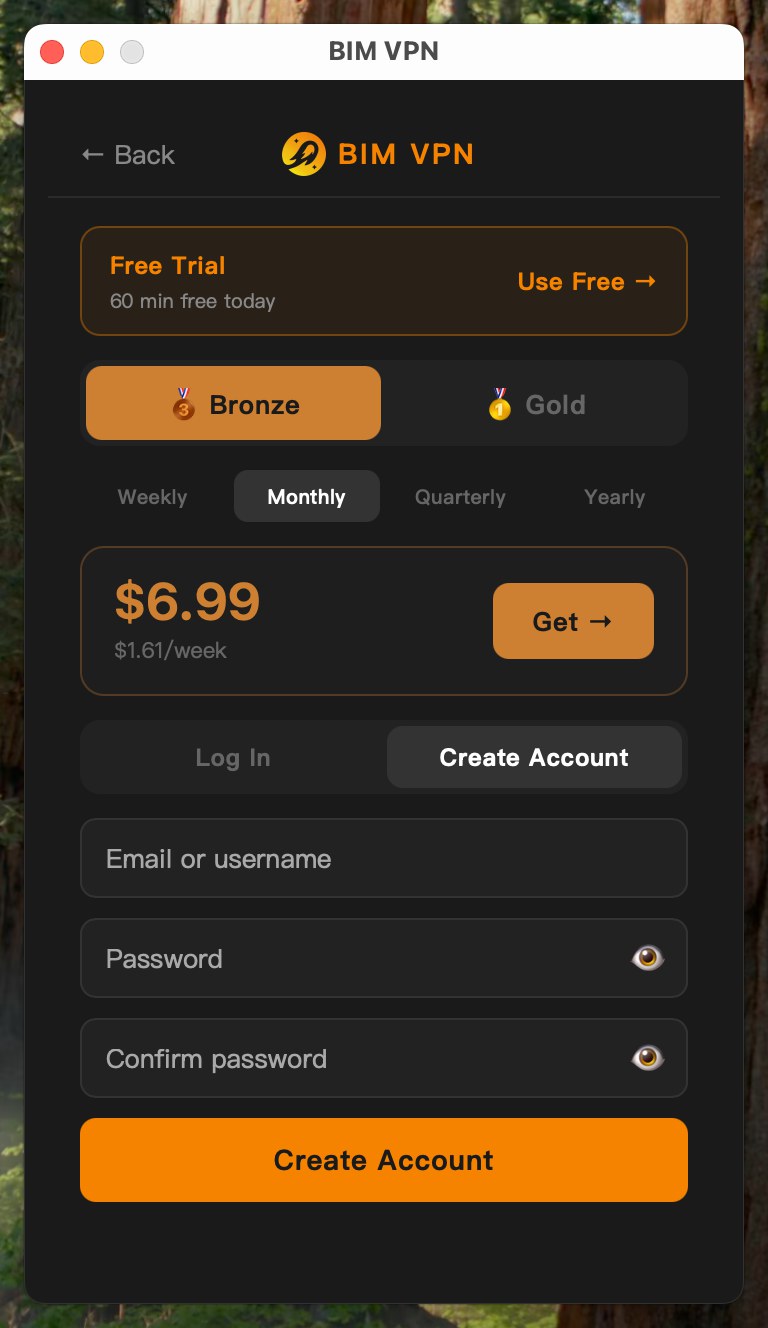
- Open BIM VPN and click Log In / Upgrade at the bottom of the home screen.
- Open the Create Account tab.
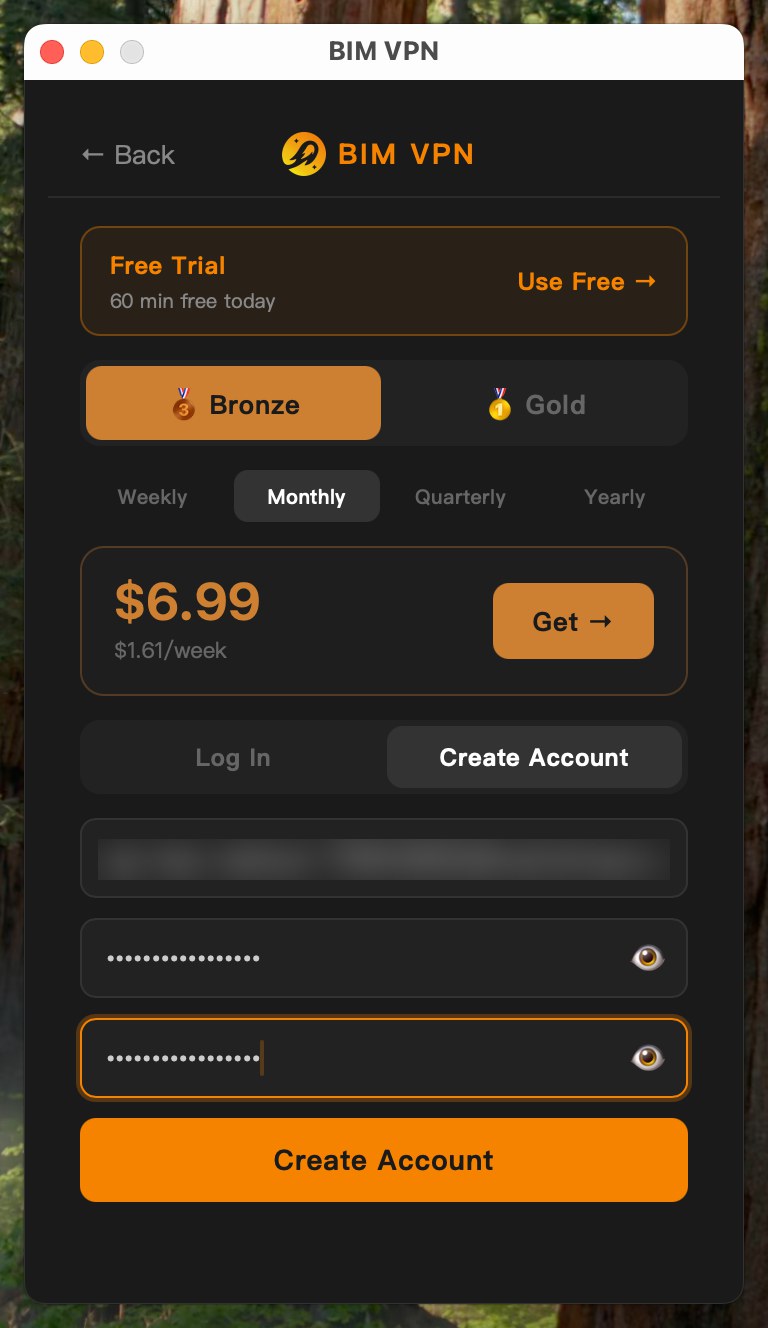
- Enter an email address or a username, then your password twice.
- Click the orange Create Account button.
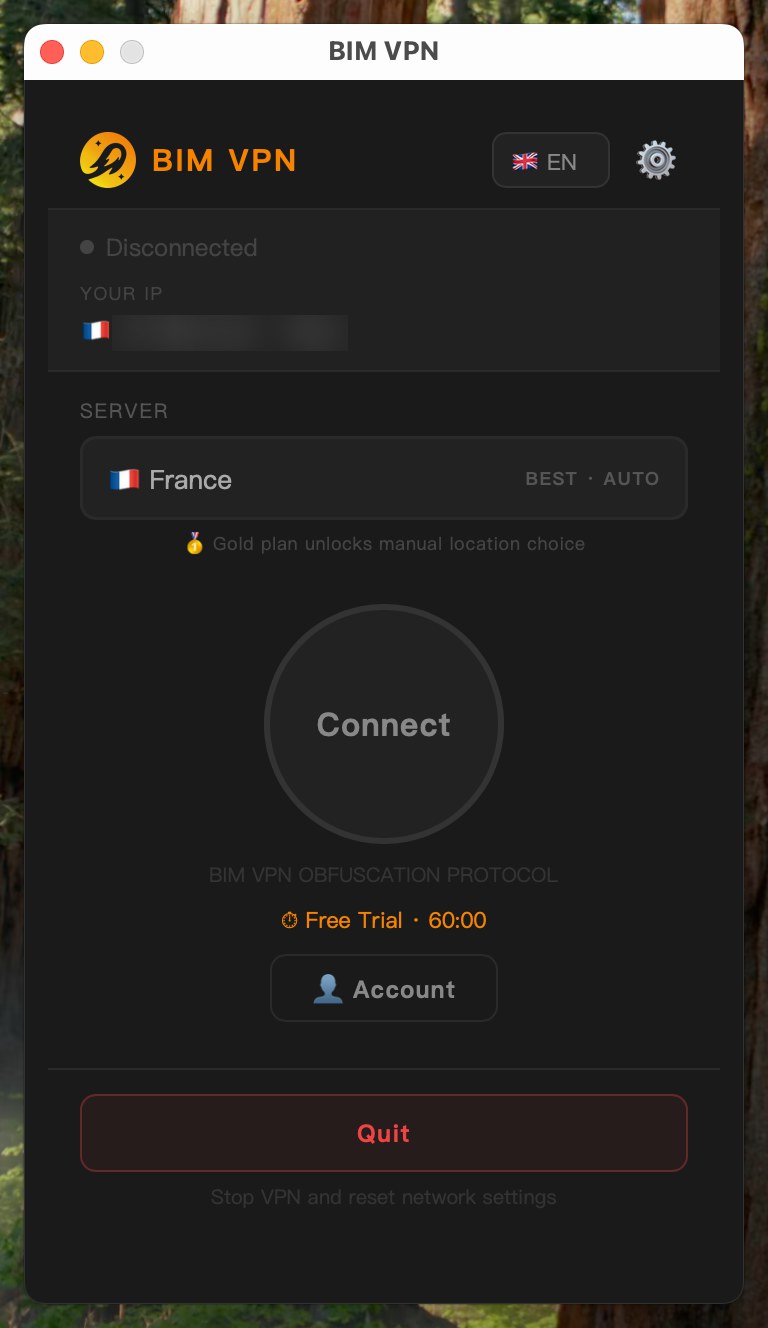
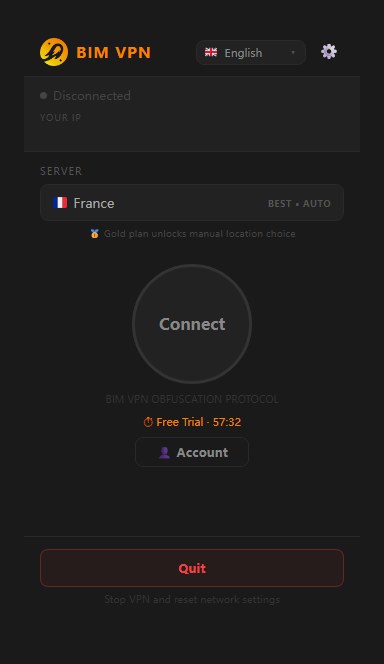
You land back on the home screen, signed in. The bottom button now reads Account.
Email or username?
| You register with | What it means |
|---|---|
| An email address | We send you an activation link. The email is tied to your account. |
| A username only | An anonymous account. No email is stored. |
Anonymous accounts cannot be recovered
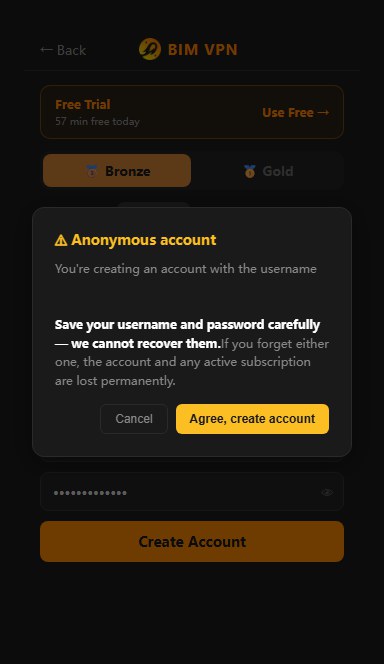
If you register with a username and no email, the app shows an Anonymous account warning. Save your username and password carefully: if you lose either one, the account and any active subscription are lost for good.
Click Agree, create account to continue, or Cancel to add an email instead.
Activate your account by email
If you registered with an email address, click Account to see its status. Until you activate it, Email status shows Not verified, with the address the link was sent to.
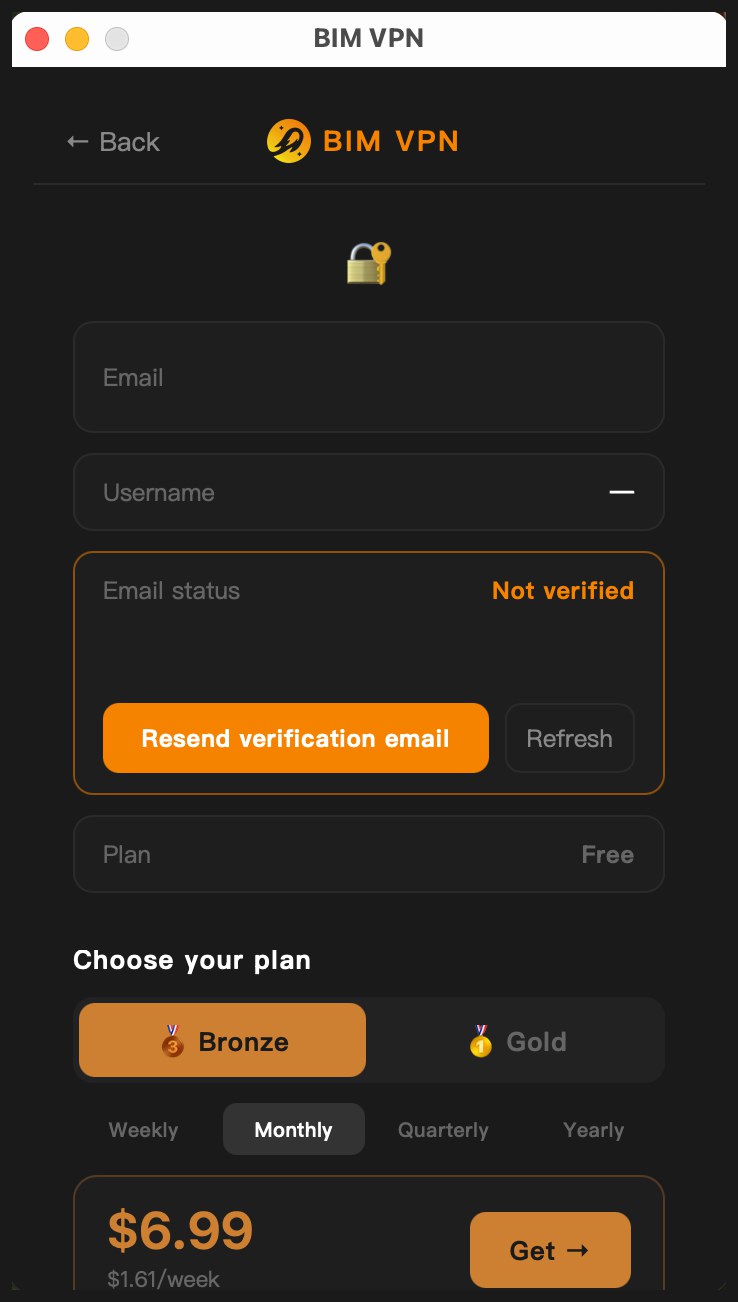
- Open the email from BIM VPN.
- Click the activation link.
- A page opens that says Email verified! You can close it and go back to the app.
- In Account, click Refresh. Email status now shows Verified.
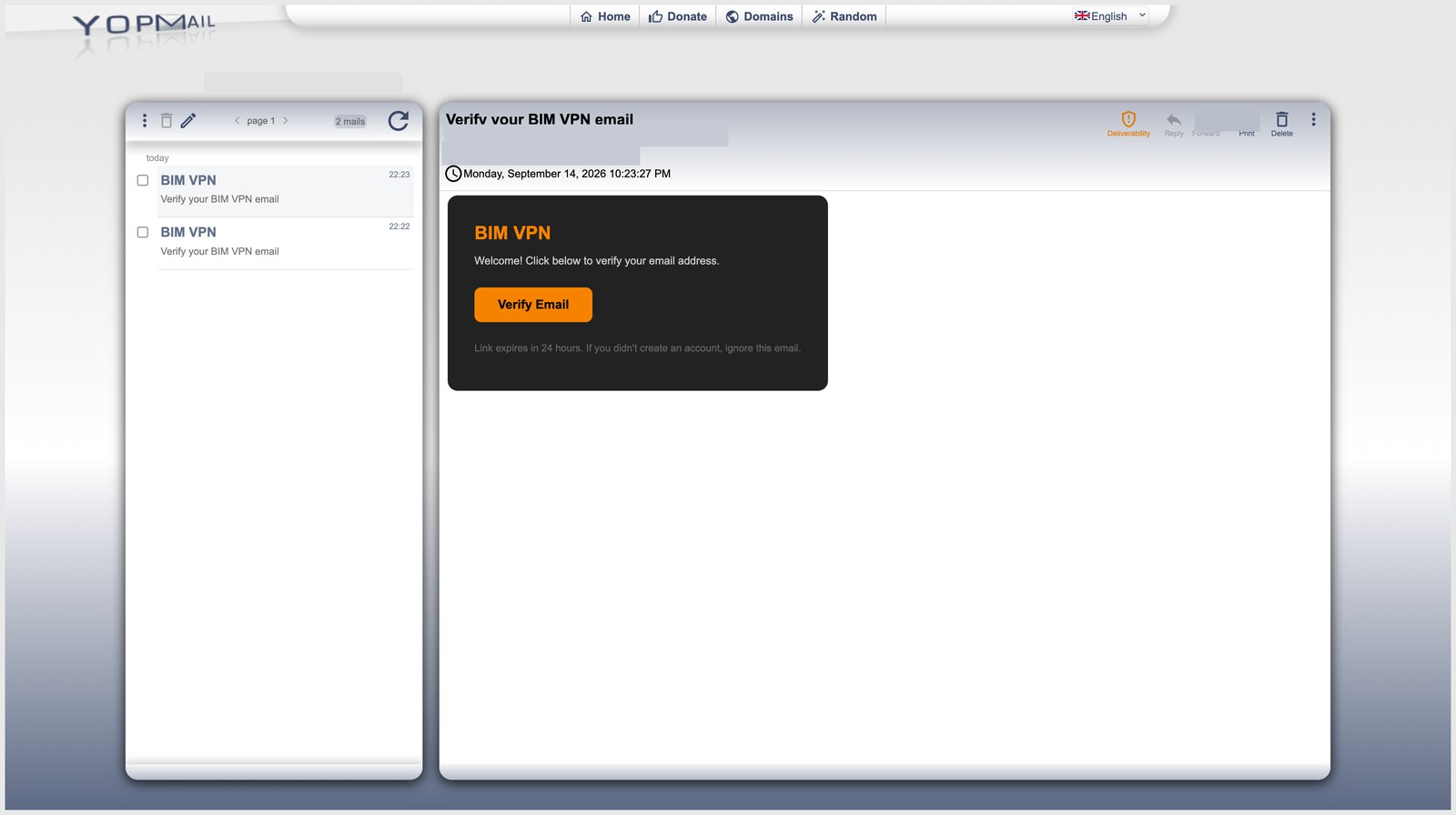
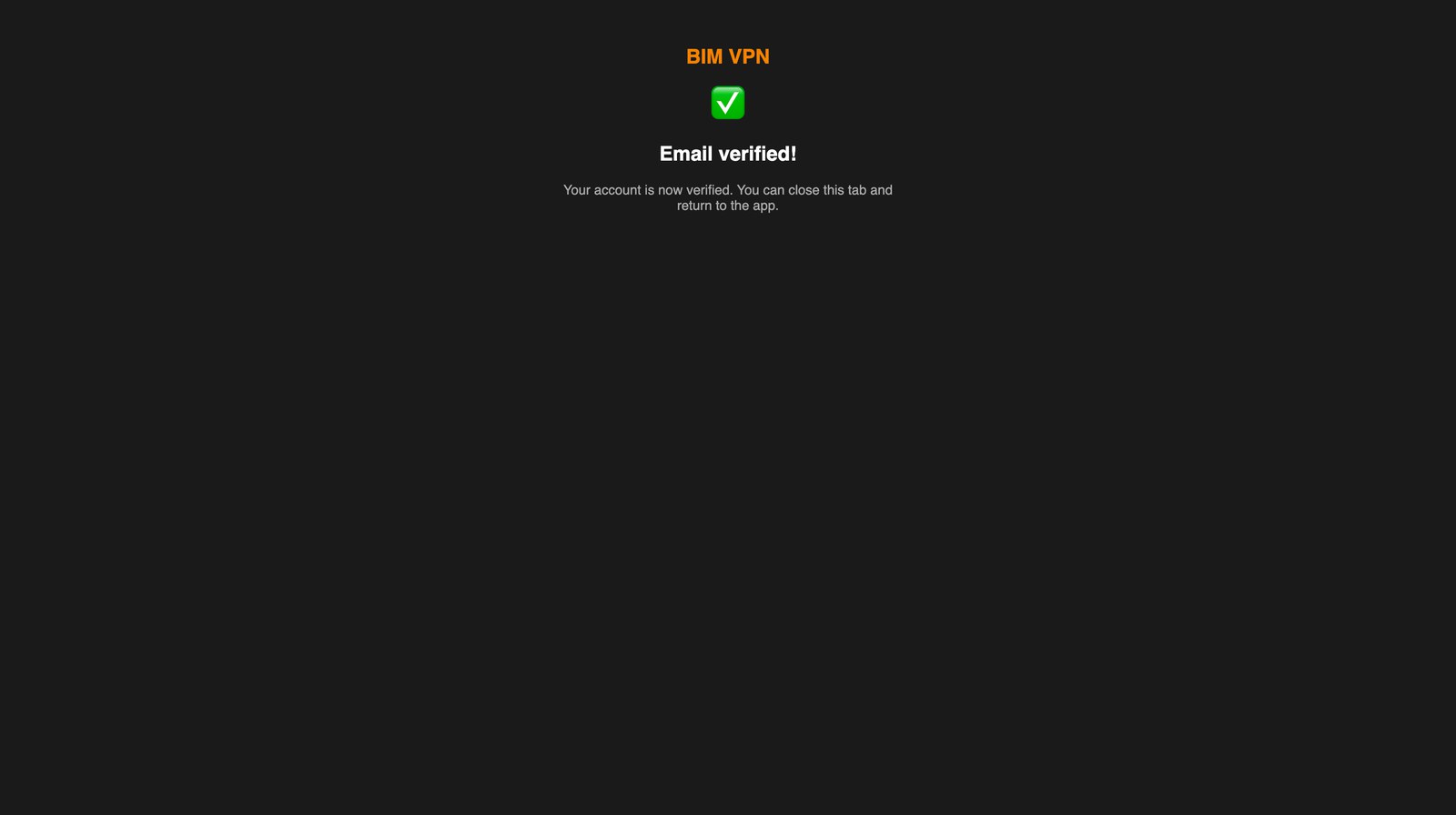
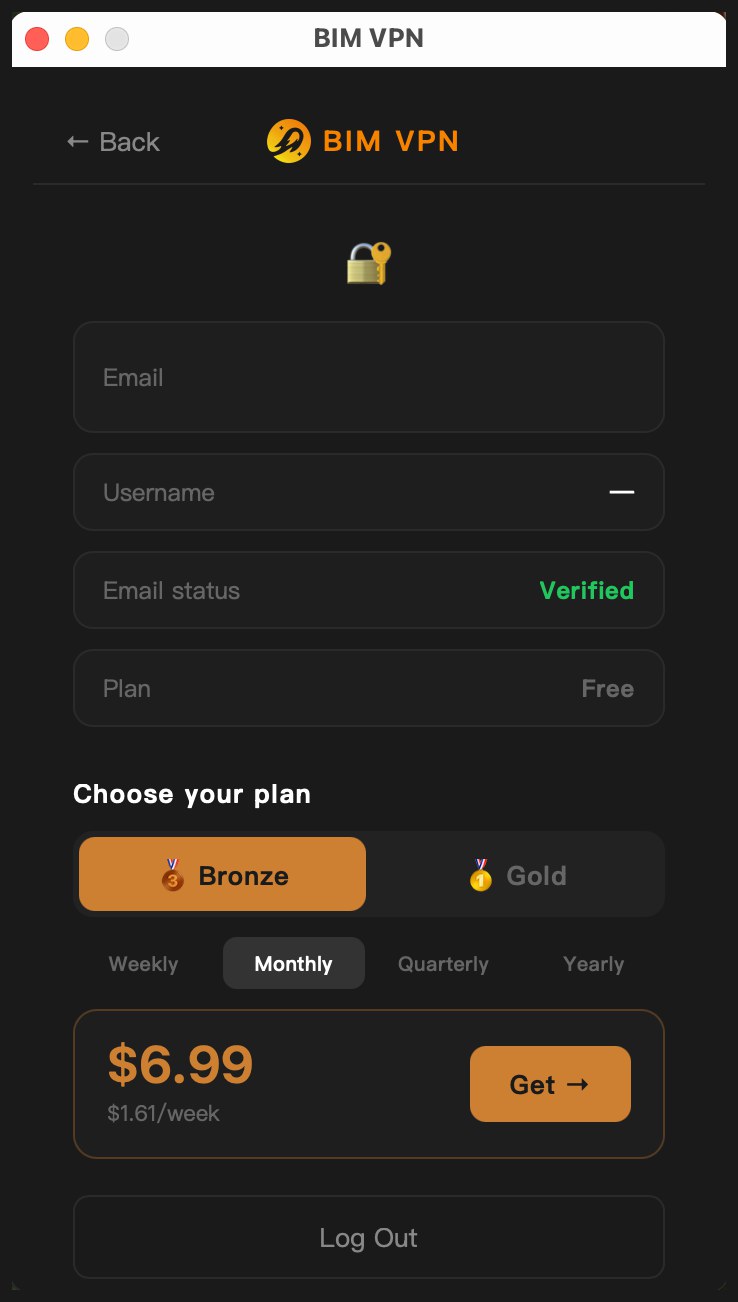
The link is valid for 24 hours. An expired or already used link shows Link expired or invalid. To get a new one, click Resend verification email in Account.
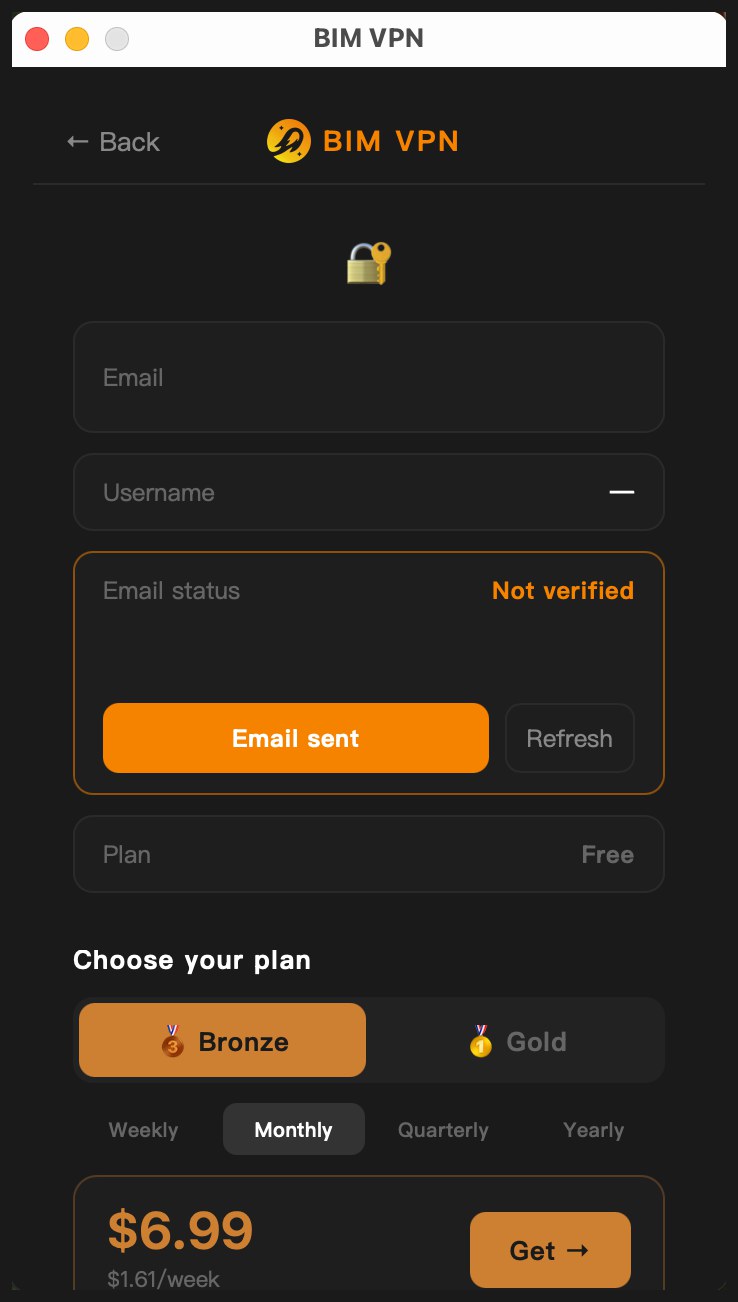 See Activation email not received.
Log in
- Click Log In / Upgrade.
- On the Log In tab, enter your email or username in Email or ID, and your password.
- Click Log In. The bottom button now shows Account.
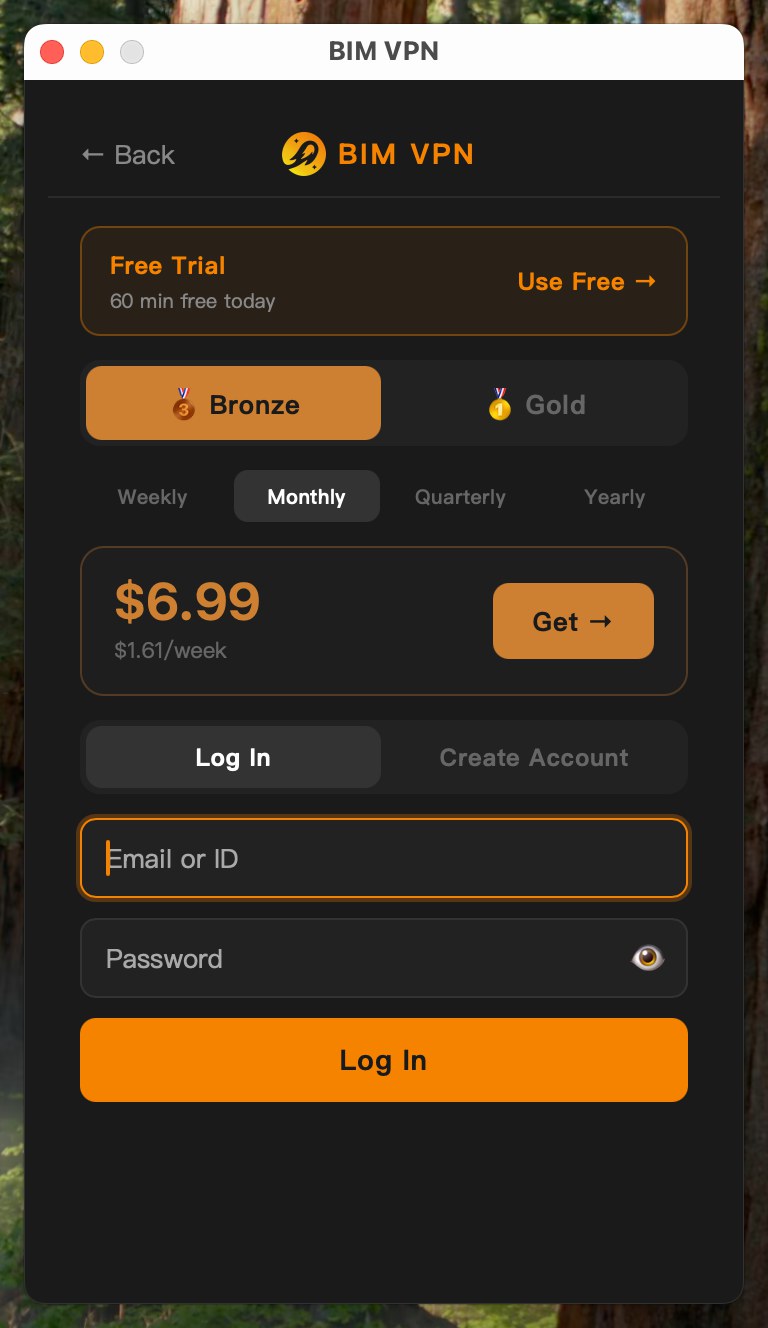
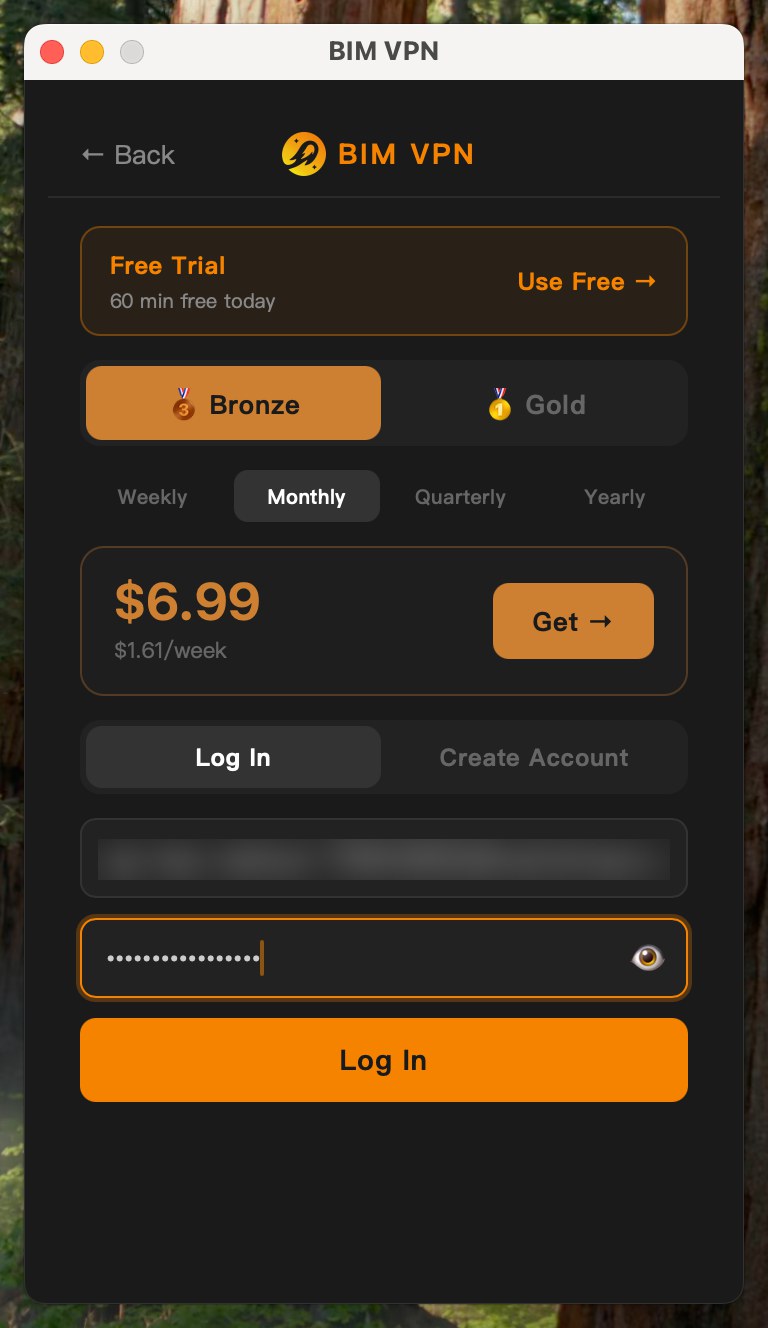
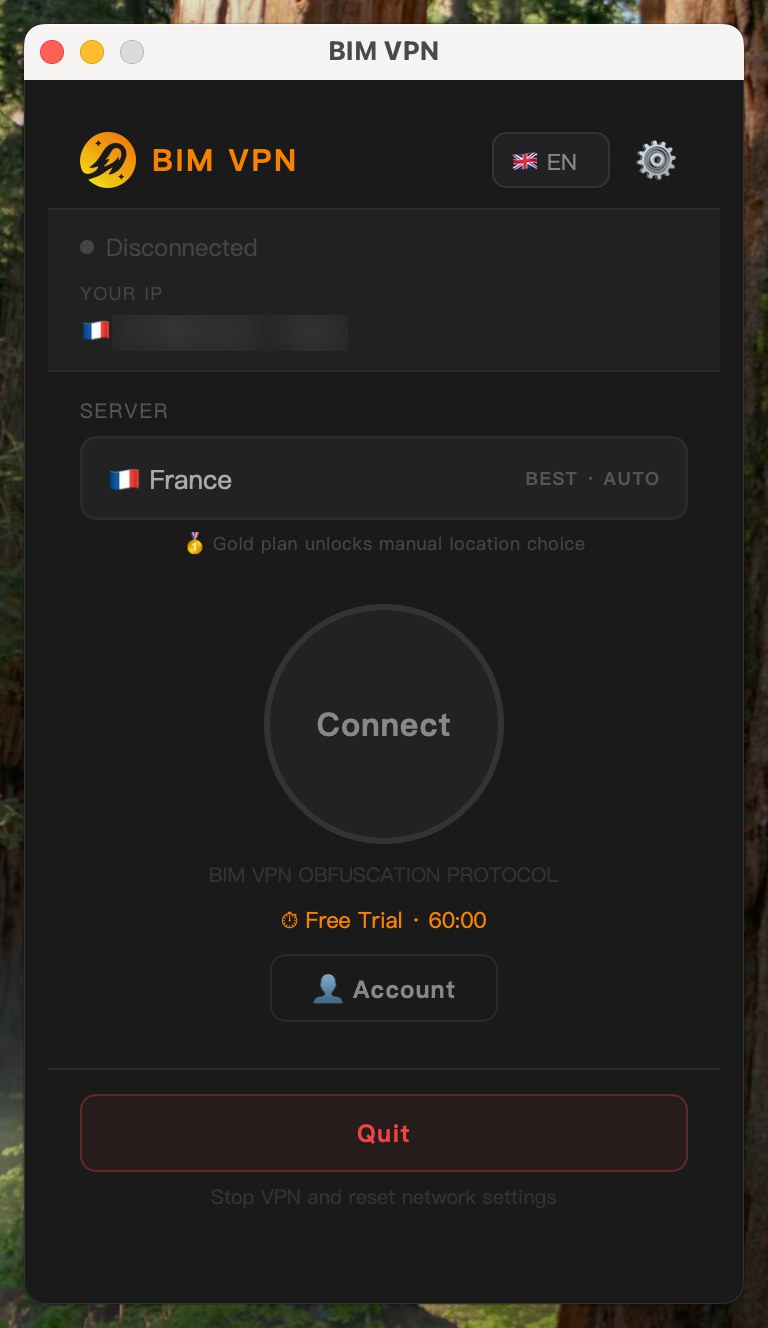
You stay logged in after closing the app or restarting the computer. The app keeps a session token in the system keychain and renews it on launch. To log out, open Account and click Log Out, or Sign out of all devices to end every session at once.
Devices per plan
| Plan | Devices at the same time |
|---|---|
| Free | 1 |
| Bronze | 2 |
| Gold | 3 |