
Add your machine as an exit node
Turn on Exit Node in the BIM VPN app to share part of your connection and earn rewards. It is off until you turn it on, and you can stop it at any time.
Requirements
- The latest BIM VPN app for macOS or Windows.
- A receiving address for rewards on Ethereum (ERC-20), or a new wallet the app creates for you. The node will not start without one.
- A connection you are allowed to share. Your internet provider's contract very likely forbids it: read it first.
- An access key from BIM, to see and manage your nodes in the app. See Get an API key.
Step 1: open the Exit Node window
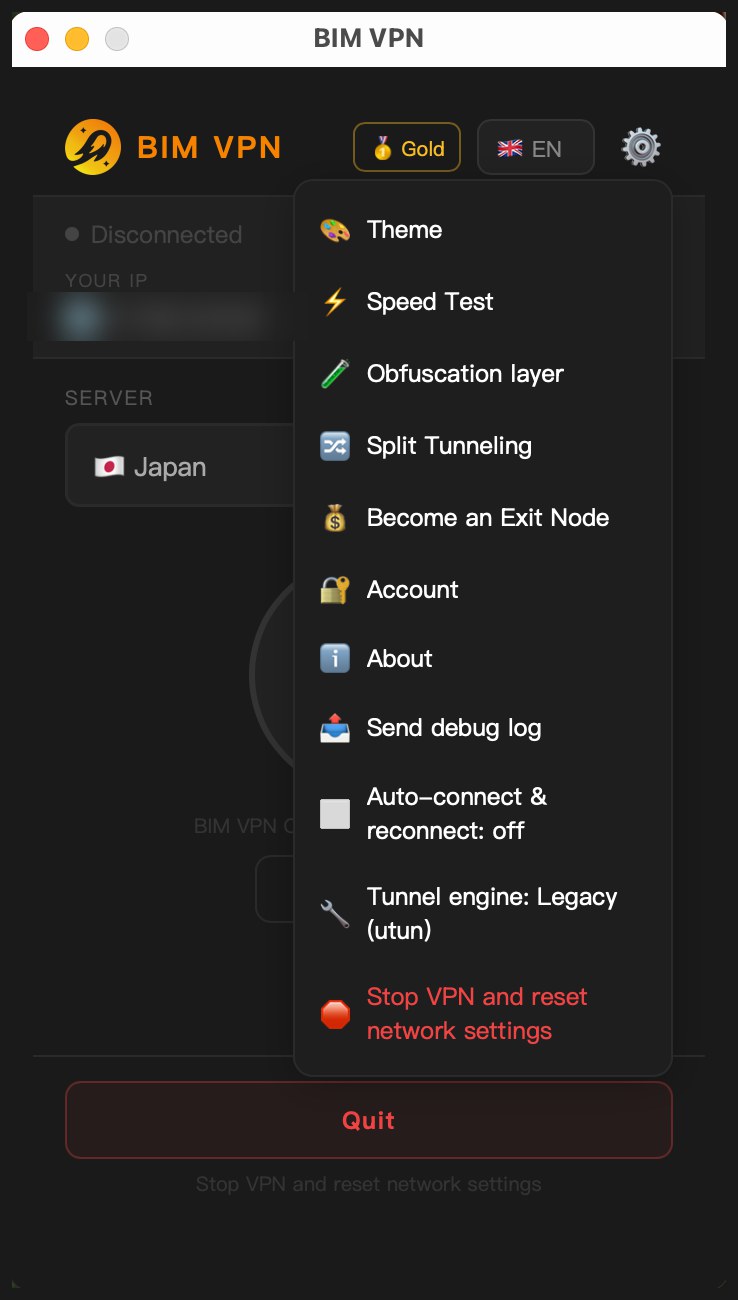
On the computer whose line you want to share, open the gear menu and choose Become an Exit Node.
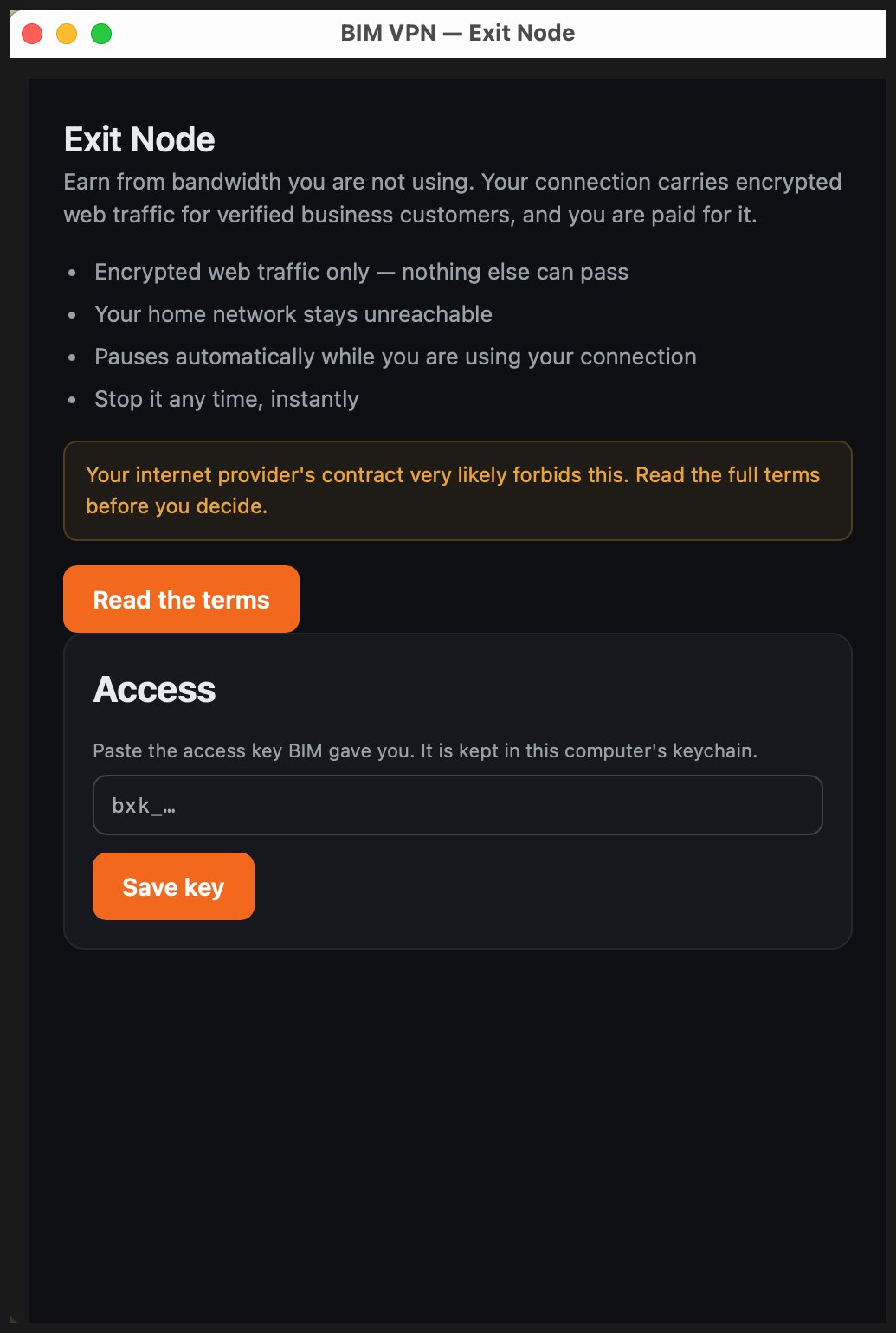
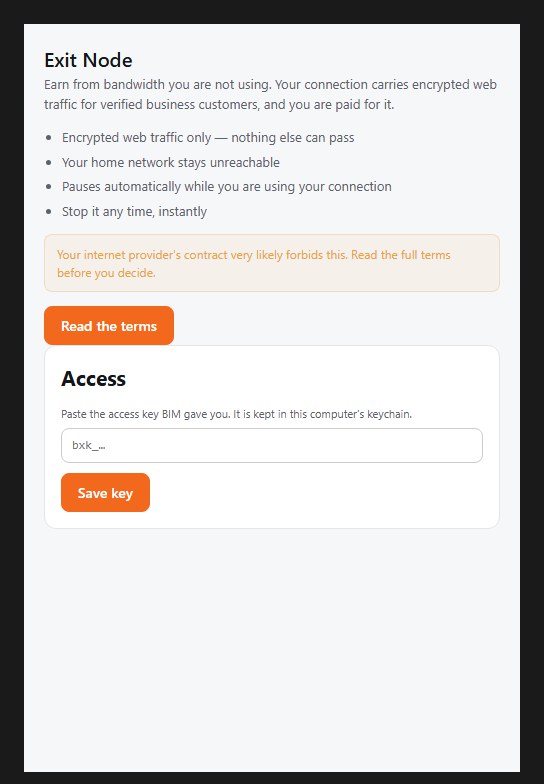
The Exit Node window opens. It sums up what the node does:
- Encrypted web traffic only, nothing else can pass.
- Your home network stays unreachable.
- It pauses automatically while you are using your connection.
- You can stop it any time, instantly.
Step 2: read and accept the terms
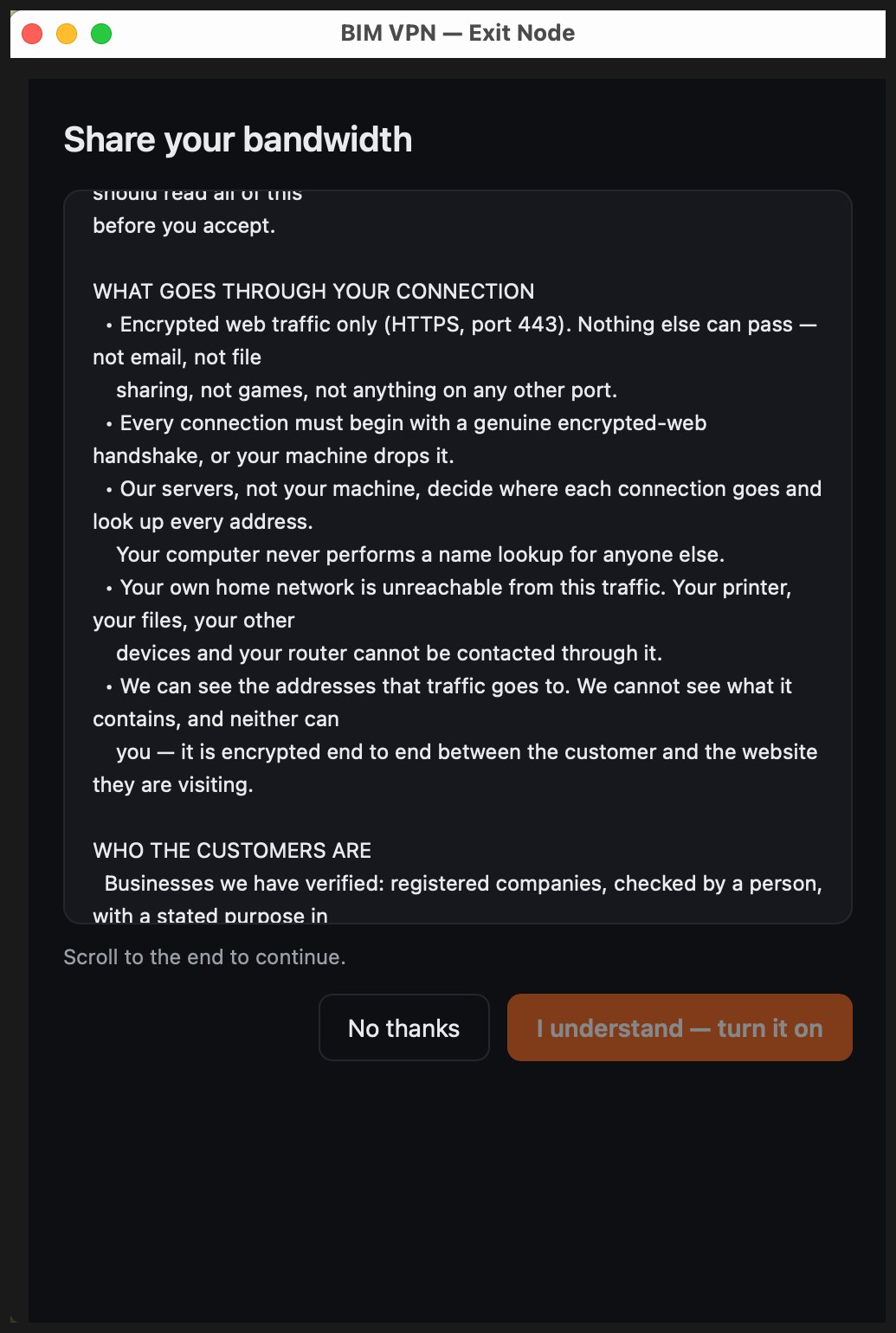
Click Read the terms. The Share your bandwidth screen explains what goes through your connection, who the customers are, what you can expect to earn, and the risks. Scroll to the end, then click I understand, turn it on. No thanks closes it without changing anything.
Step 3: choose where your earnings go
Under Where should we send your earnings?, pick one option:
| Option | What happens | What is stored on this computer |
|---|---|---|
| Connect my wallet (safer) | Paste a receiving address from MetaMask, Ledger or an exchange | Nothing secret |
| Create a new wallet for me | The app creates a new Ethereum wallet on this computer | The 12-word recovery phrase |
| I have a recovery phrase | Restore an existing Ethereum account | The 12-word recovery phrase |
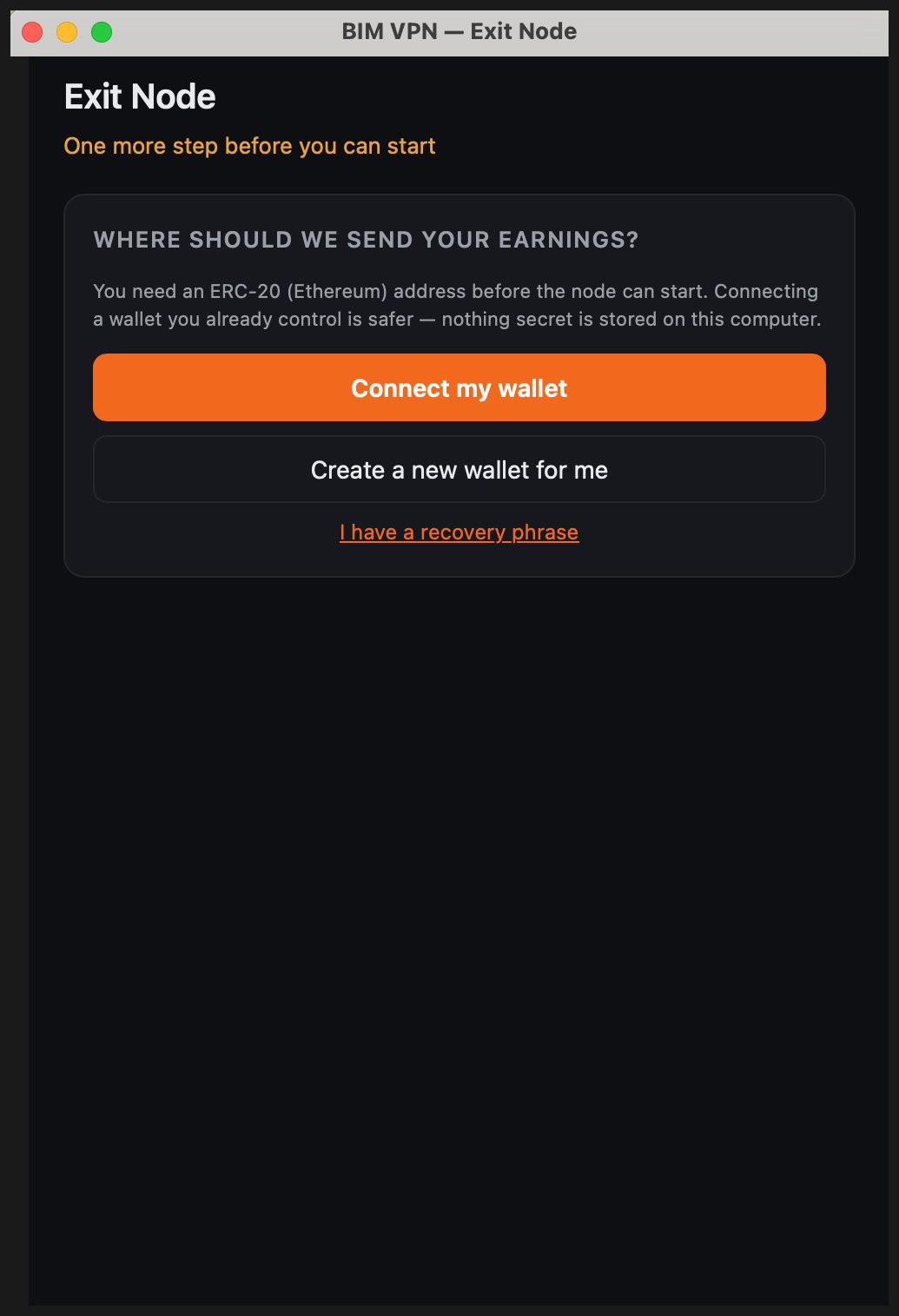
- Addresses are checked as you type. A mistyped address is rejected, because a payout to a wrong address cannot be recovered.
- The app is not a wallet. It never signs or sends anything. Rewards are sent to your address from the BIM treasury.
If you choose Create a new wallet for me
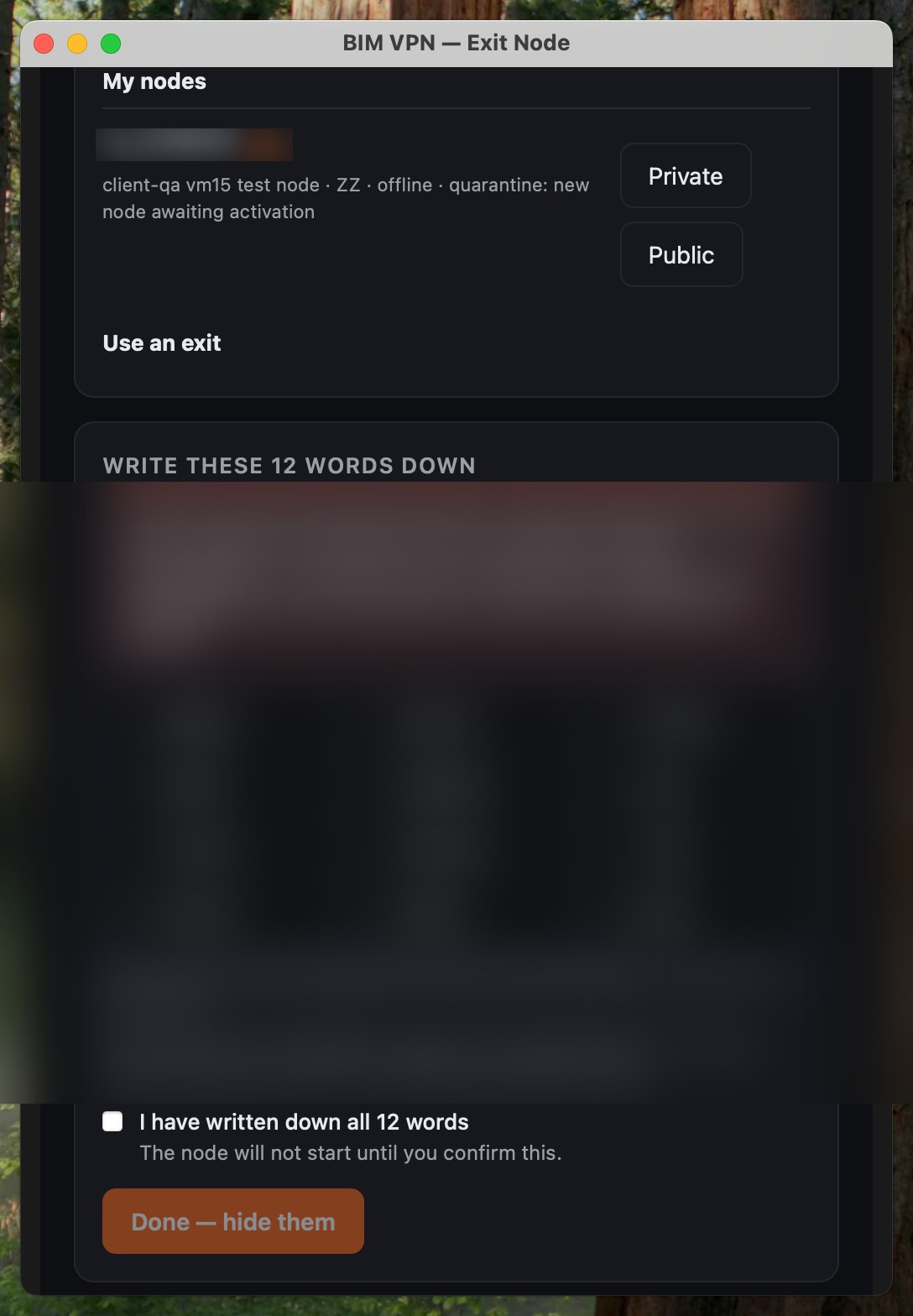
- The app generates 12 words on this computer and shows them once, under Write these 12 words down.
- Write the 12 words on paper, in order.
- Tick I have written down all 12 words. The node will not start until you do.
- Click Done, hide them.
Keep your 12 words secret
BIM will never ask you for these 12 words, not by email, chat, phone or anywhere else. Never type them into a website or send them to anyone: whoever has them can take your rewards. Write them on paper and keep it somewhere safe. BIM cannot recover them for you.
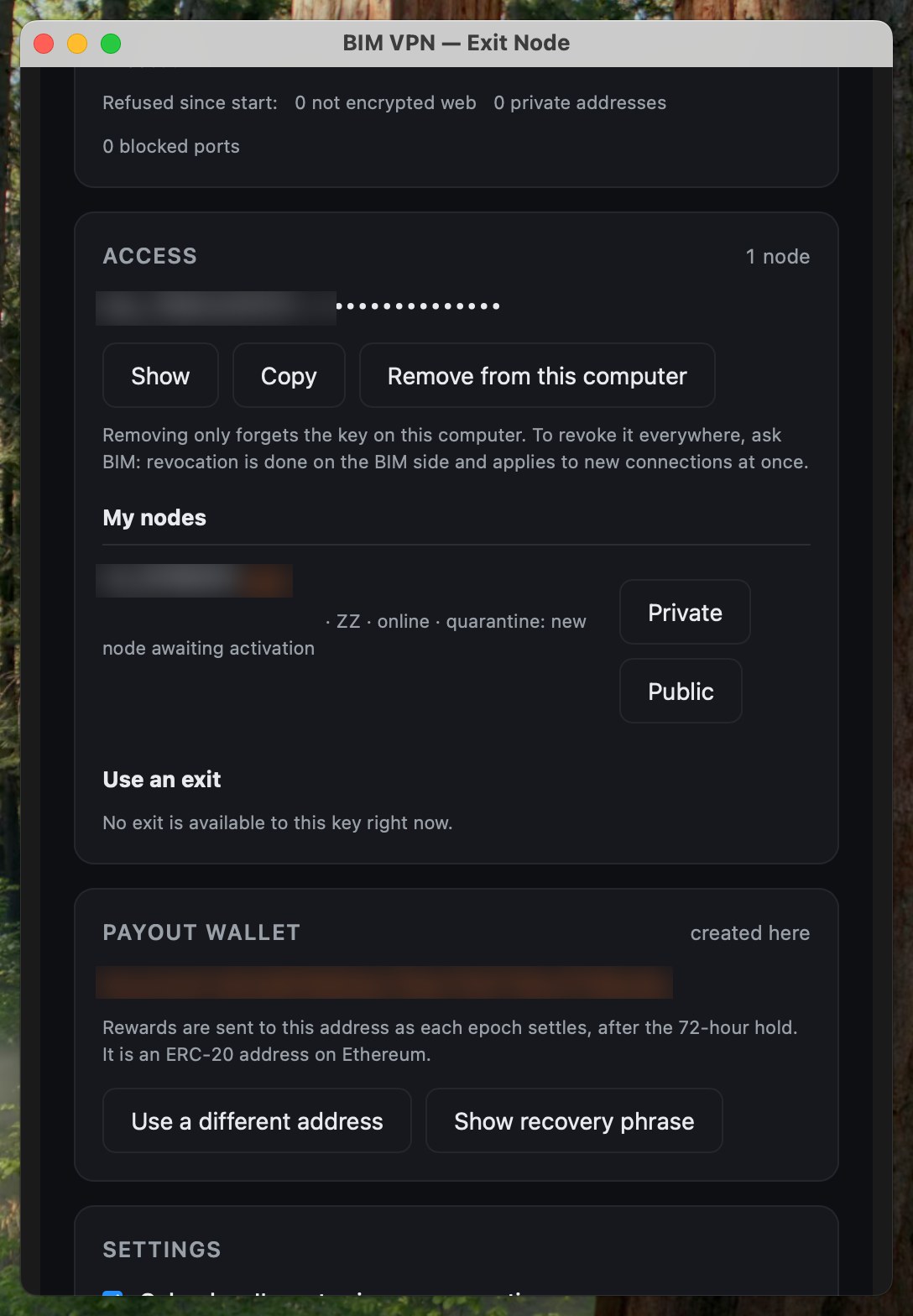
Your Payout wallet then shows created here. Show recovery phrase displays the words again on this computer, and Use a different address switches to another wallet.
Step 4: wait for activation
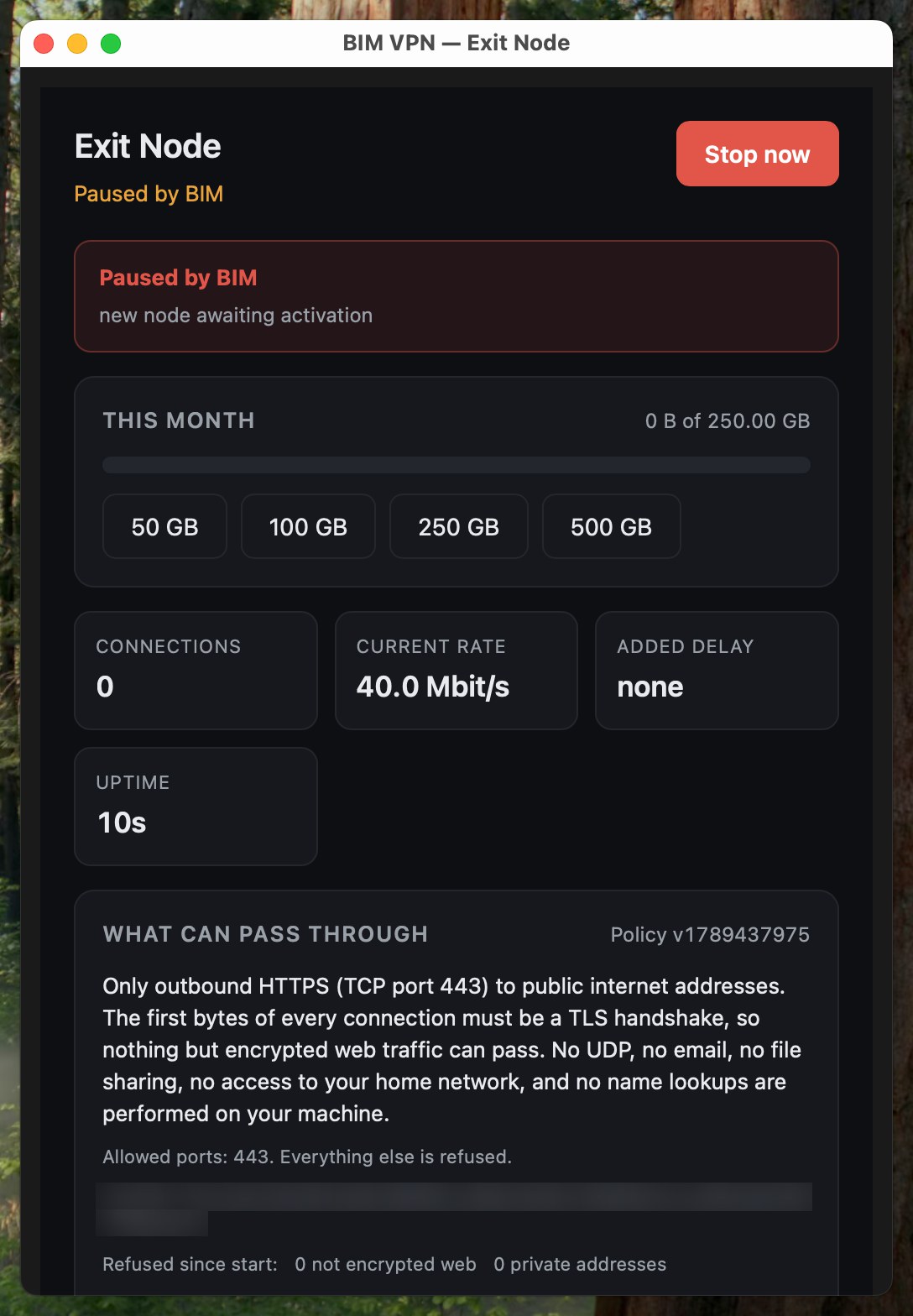
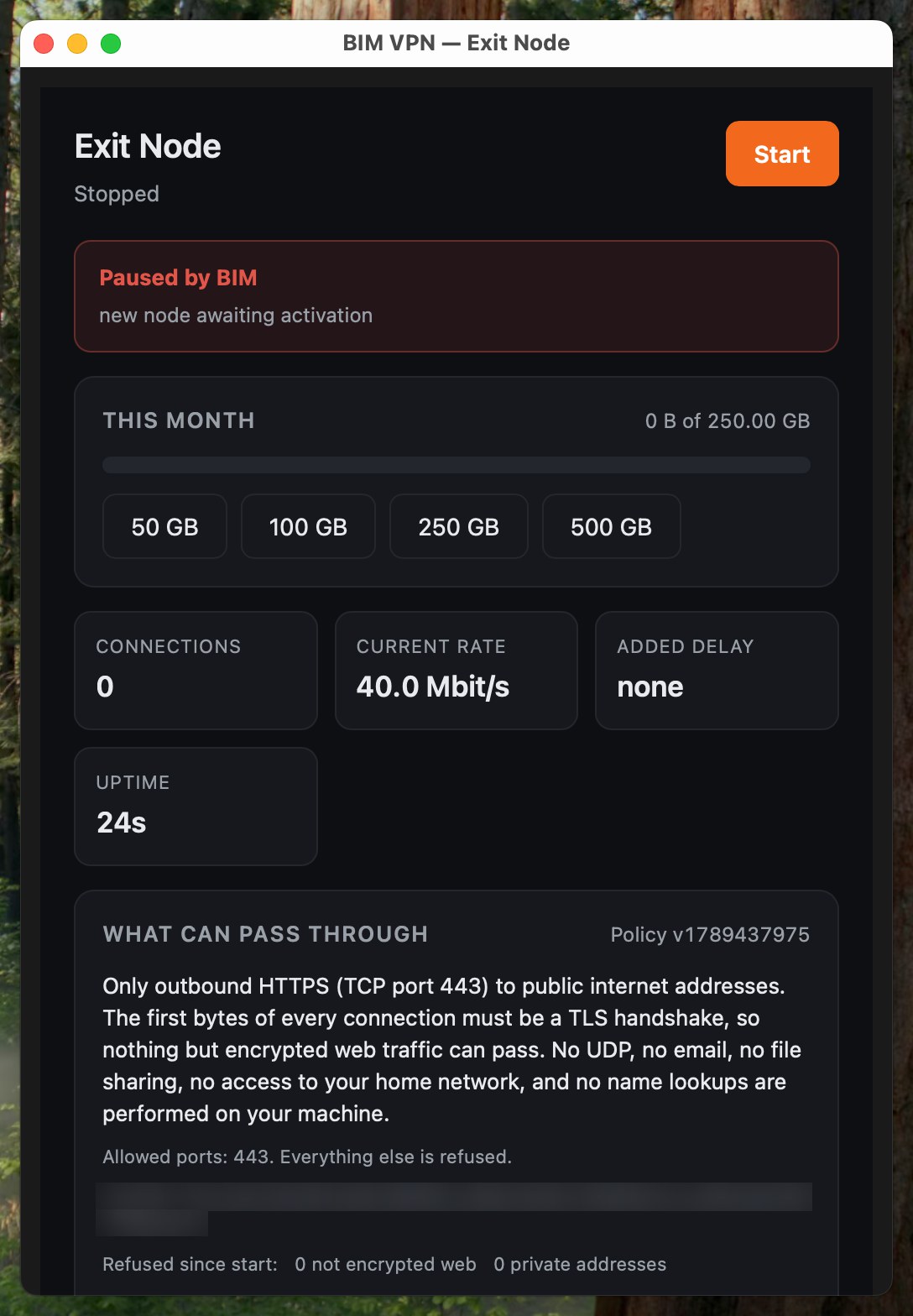
The app registers the node with BIM and it receives its own certificate. It then shows Paused by BIM: new node awaiting activation.
A new node always starts paused. It is connected but carries no traffic until BIM activates it. Send BIM the email or username of the BIM VPN account that should own the node. BIM checks the node, sets its owner, country and label, and switches it on. The node is told immediately.
New nodes earn at a reduced rate for the first 14 days.
Node states
| State | Meaning |
|---|---|
quarantine |
Paused. New nodes start here; BIM can also pause a node for review. Shown as Paused by BIM. |
active |
Carrying traffic for the keys allowed to use it |
drain |
Finishing current connections, taking no new ones |
stop |
Stopped for good |
Step 5: save your access key
Under Access, paste the access key BIM gave you and click Save key. The key is kept in this computer's keychain.
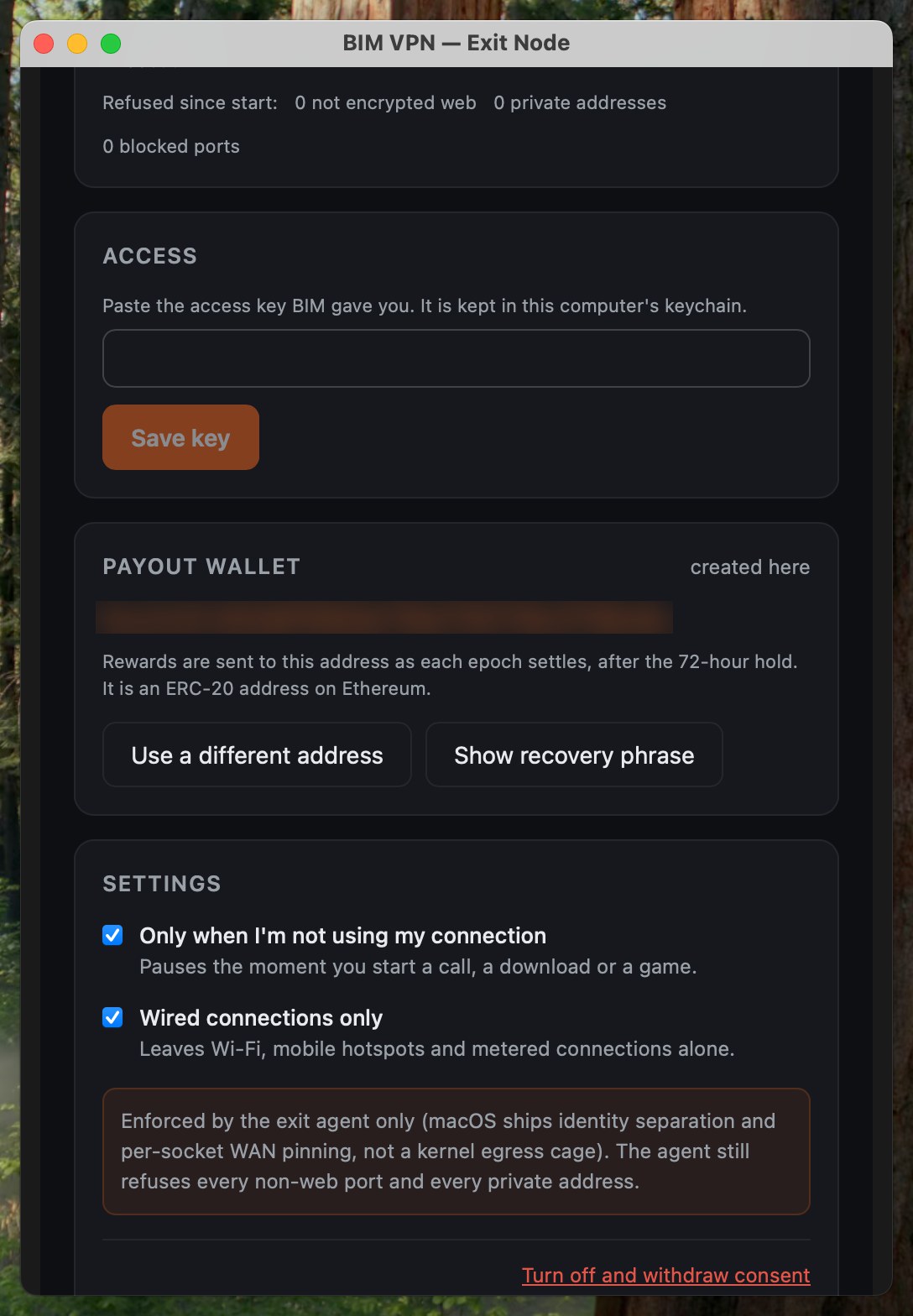
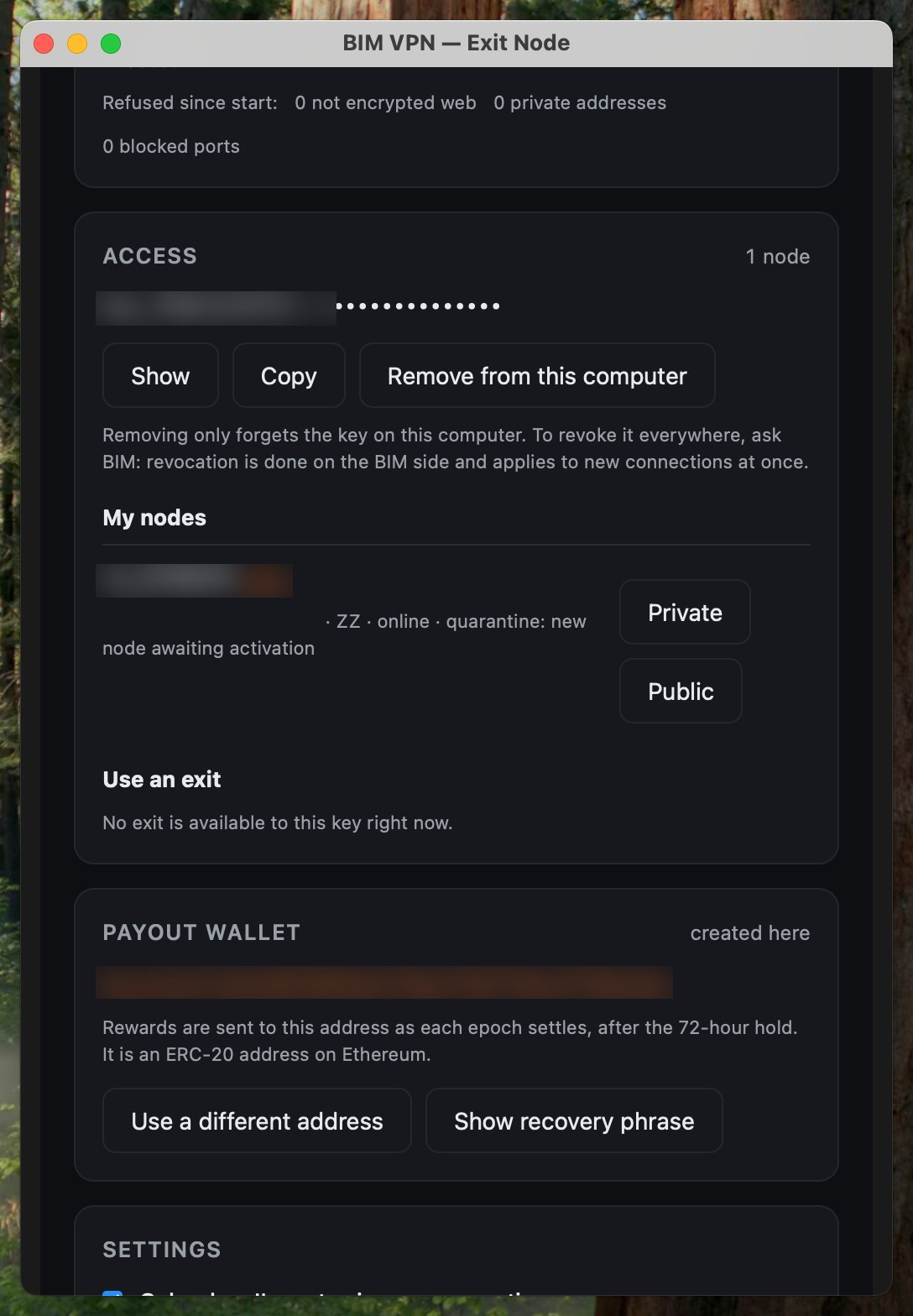
Once saved, the key is masked. Show reveals it, Copy copies it, and Remove from this computer forgets it on this computer only. To revoke a key everywhere, ask BIM: revocation applies to new connections at once.
Step 6: make your node private or public
Every node starts private: only keys under your account can use it. Make it public to let anyone with a valid BIM exit key use it.
With your key saved, My nodes lists every node you own, with its state. Use the Private and Public switch on the node's row.
The same change works from a terminal with your key. Keys can change visibility and label; only BIM can change the owner and country.
KEY='bxk_EXAMPLE.YOUR_SECRET'
curl -X PATCH https://exit-api.bimvpn.xyz/v1/nodes/nd_EXAMPLE \
     -H "Authorization: Bearer $KEY" -H 'Content-Type: application/json' \
     -d '{"visibility":"public"}'
Send "private" to make it private again. A key that does not own the node gets unknown_node. To list your own nodes, in any state, and why one is paused:
curl -H "Authorization: Bearer $KEY" https://exit-api.bimvpn.xyz/v1/nodes/mine
Step 7: watch it run
The window shows, for this month: data carried against your monthly cap, connections, current rate, added delay and uptime, plus What can pass through, the signed policy your node enforces.
Once BIM activates your node, the window also shows the traffic it has carried and the earnings for the month, with earnings held for 72 hours before they become available, and you can export your full earnings history as CSV.
How your rate is worked out lists every factor and why it applies to you:
| Factor | What moves it |
|---|---|
| Connection type | Mobile carrier addresses earn most; data centre addresses earn very little by design |
| Location | Places where exits are scarce pay more |
| Address reputation | An address on an abuse list is suspended from earning |
| Upload speed | Rises with measured upload, up to 25 Mbit/s |
| Uptime | Your share of the last 30 days spent online |
| Address stability | Addresses that change often earn less |
| Account age | Reduced rate for the first 14 days |
Settings
- Only when I'm not using my connection: pauses the moment you start a call, a download or a game.
- Wired connections only: leaves Wi-Fi, mobile hotspots and metered connections alone.
Share your private node with someone
Ask BIM for another key under your account, labelled with the person's name, and give it to them. They can use your private nodes with it. To take access away, ask BIM to revoke that key: it stops working on their next connection. Connections already open are not cut.
Stop the node
Click Stop now. The node stops immediately and the window shows Stopped, with Start to resume.
To leave the program, click Turn off and withdraw consent. That also clears your recorded acceptance.